NSWI142: Web Applications
2. HTML Form
Jáchym Bártík, KSI
jachym.bartik@matfyz.cuni.cz
Points and grading
| 12 | Labs attendance |
| 12 | Labs bonus points |
| 15 | ReCodEx mandatory tasks |
| ≥ 9 | ReCodEx optional tasks |
| 15 | Lab test |
| 63 | In total |
|---|
| ≥ 61 | excellent (mark 1) |
| ≥ 54 | well done (mark 2) |
| ≥ 47 | OK (mark 3) |
| < 47 | failed (4) |
The final test is optional and is for 50 points, but only 2/3 of points from above will be counted.
Recap from Lecture 1
- URL
- HTTP, its headers, status codes
- HTML & DOM
- Forms as a way to submit data to server
- CSS selectors and basic properties
- CSS animations
- Box model (width, margin, border, padding)
- Media queries (CSS for printing, dark mode, orientation)
Preliminaries
You should be able to:
- Explain the difference between HTTP GET and HTTP POST.
- Create a static website with form in it.
- Create accessible and semantic forms.
- Use basic CSS.
Exercise: HTML Form
Create a simple HTML form for creating a reservation for today's practical. Include inputs for:
- first name
- last name
- number of reservations
Submit the form to the following URL.
Feel free to use sites such as echo.free.beeceptor.com.
Continue to the next slide once you are done.
Debriefing
- Why do we need a form?
-
What is the difference between GET and POST?
- Try changing it to POST. What happens if you refresh the page?
- What was missing?
Form validation
Where to validate the form and how?
required- field must be non-empty- Whitespaces are fine ...
type="email"- field must contain a valid email address- What is a valid email?
type="number" min="1" max="10"- field must contain a number in the given range- Still allows scientific notation ...
pattern="[A-Za-z]{3}"- field must match the given regular expression- Nobody will understand that ...
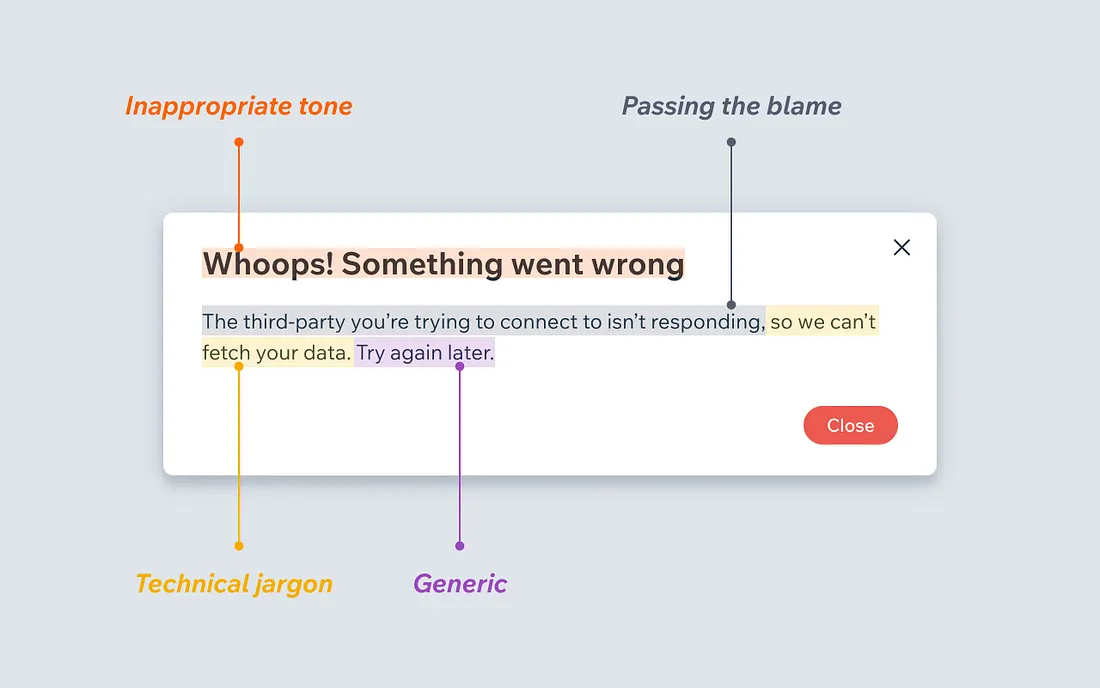
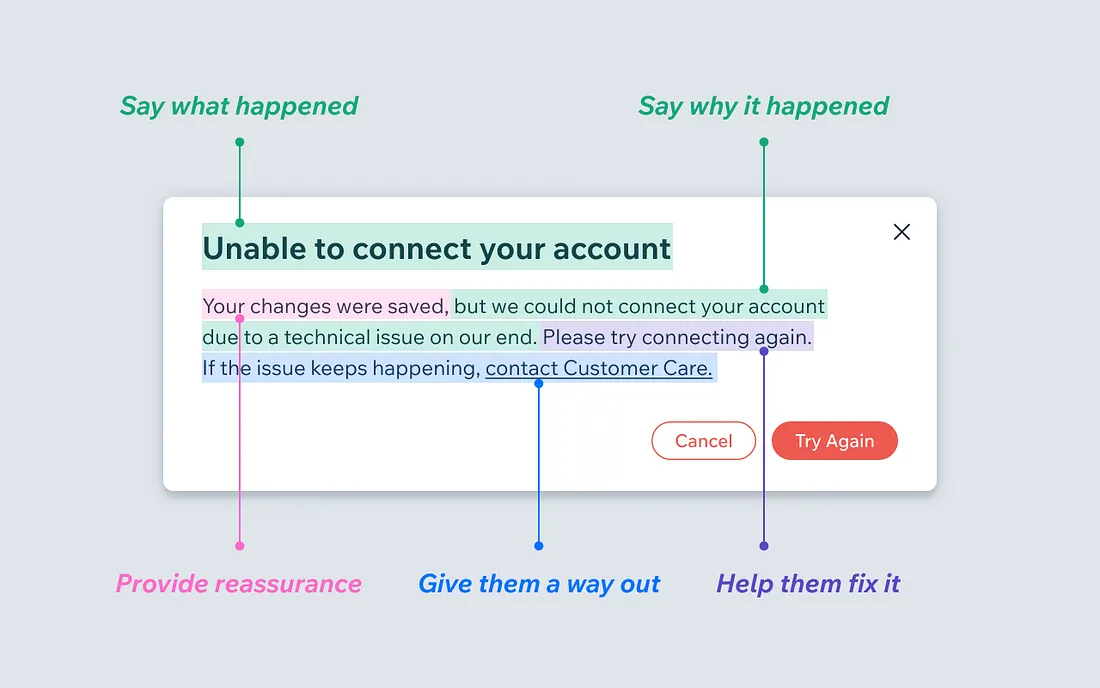
Make errors understandable
Don't over-validate
- An RFC2822 valid e-mail address:
name\@tag\ with\ space@[IPv6:0123:4567:89AB:CDEF:0123:4567:89AB:CDEF] - Pablo Diego José Francisco de Paula Juan Nepomuceno María de los Remedios Cipriano de la Santísima Trinidad Ruiz y Picasso
- Address, phone number, bank account - notoriously hard to validate
- Input type
tel- no validation, only semantic
- Input type
- Microsoft banned a user from Xbox Live for putting Fort Gay, West Virginia as his address
Accessibility (a11y) and semantic forms
- Use
<label>to associate labels with inputs - Use
<fieldset>and<legend>to group related inputs - Use
<input>types appropriately - Ensure proper tab order and keyboard navigation (
tabindex) - Use ARIA roles and properties when necessary
aria-labelaria-describedby
You can also use some poverful UX techniques like placeholder attribute or autocomplete. But make sure to provide an accessible fallback.
Exercise: Validation and accessibility
- Add meanigful validation to your form.
- Make the form accessible by using ARIA, labels, fieldsets.
- Style the form using CSS, use
:user-valid,:user-invalid, and:focuspseudo-classes.
Example of associating a label with an input:
Continue to the next slide once you are done.
UX/UI - the "bad" ...
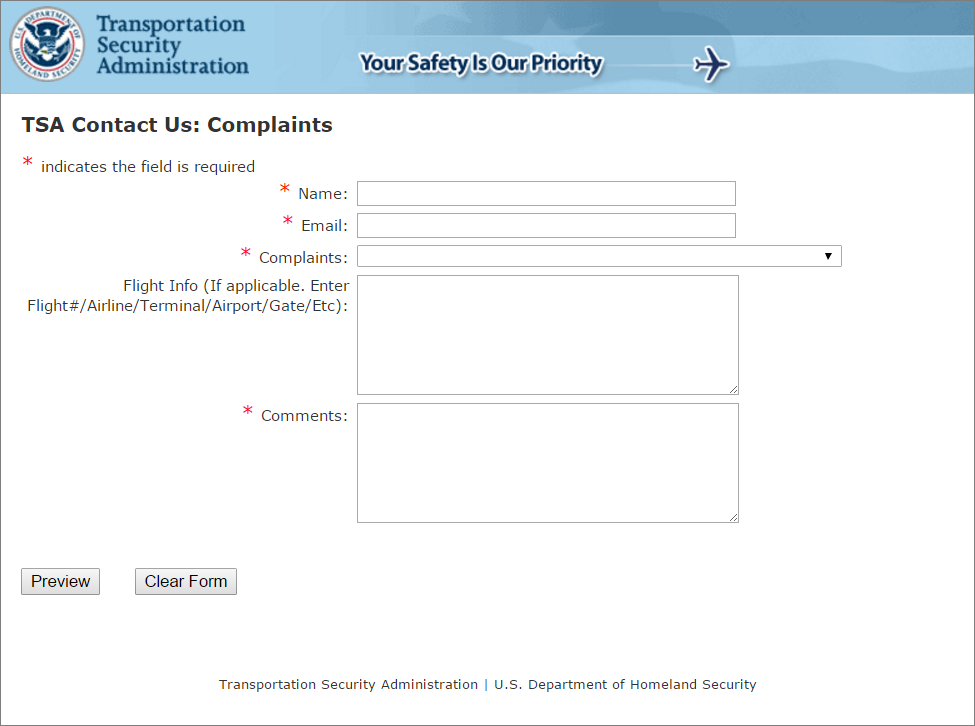
Discussion: What are we missing?
What other properties could be in the form? Try cover all common controls.
Controls
- Password input
- File input
- Checkbox
- Radio
- Select
- Datetime
- Color
- Textarea
- ...
Exercise: More controls
Extend your form with the discussed controls. Feel free to use them on fields that make sense to you.
Don't forget accessibility.
Continue to the next slide once you are done.
Debriefing
- Is the form still understandable?
- Consider wizards / multi-step forms.
- What are the pros and cons?
Testing and evaluation
Have we created a functional form?
Have we created a good form?
Have we created a ....
Measuring the "goodness"
In order to measure we need a metric.
- Usability: Is the form easy to understand and fill out? Are the labels clear and inputs intuitive?
- Accessibility: Can users with disabilities interact with the form? Does it support screen readers and keyboard navigation?
- Validation: Are there proper validations in place to prevent incorrect or incomplete submissions?
- Feedback: Does the form provide clear feedback for errors or successful submissions?
- Performance: Does the form load quickly and work seamlessly across different devices and browsers?
- Security: Are user inputs sanitized and protected against common vulnerabilities like XSS or SQL injection?
- ...
Evaluation
Full and proper evaluation is out of scope of this practical and even subject. Please consider this slide to be a very brief introduction.
The System Usability Scale (SUS) is often used to evaluate after the implementation phase. The method is based on a simple questionnaire and provide a number representing usability. You can find a lot of resources on the internet about SUS. E.g. SUS by uxtweak.
Yet, evaluating after implementation may be too late! In fact, we would like to test at every phase, not only after the implementation. Baseline phases are analysis, design, and implementation. In the analytical phase we can use storyboards. In the design phase we can use paper mockups or low fidelity prototypes.
We can also use A/B testing to compare alternatives.
There is much more when it comes to user interface design and evaluation. If you find this topic interesting, check out User Interface Design and Evaluation (Interactive Technologies) book.
A/B testing


Bonus: Finish the form
Upload the form to your public_html directory on webik page as form.html. It should contain all the improvements you made during the practical.